 Magpie Search
Why Windows Search doesn't find text inside your files, and how to fix it
The usual reasons Windows misses text inside files, with a fix for each one.
The short answer: Windows Search only looks inside files that are (1) in an indexed location, (2) of a type whose contents Windows is set to index, and (3) of a type Windows has a content filter for. Text in pictures and scanned PDFs is never indexed. Most “it doesn't find my file” problems come from one of these. The fixes are below, from the quickest check to a full index rebuild.
The seven usual causes
| Cause | Typical sign | Fix |
|---|---|---|
| The folder isn't indexed | Names match, contents never do | Add the location |
| The file type is set to “properties only” | Works for .docx, not for .md or .log | Change the file type setting |
| No content filter for the type | “Registered IFilter not found” | Use the plain-text filter or another tool |
| The text is in a picture or a scan | Screenshots, scanned PDFs, photos | Use OCR |
| The index is still building | “Indexing speed is reduced”, few items | Wait, or plug in the laptop |
| The index is damaged | Results vanish or are stale | Rebuild it |
| The Windows Search service is off | Search box finds nothing at all | Start the service |
Fix 1: add the folder to the index
- Open the Start menu, type Indexing Options and open it. (On Windows 11 you can also go to Settings › Privacy & security › Searching Windows › Advanced indexing options.)
- Click Modify.
- Tick the drive or folder that contains your files and click OK.
- Wait for the item count at the top to stop rising.
On Windows 11, Settings › Privacy & security › Searching Windows also offers Classic (libraries and desktop only) or Enhanced (the whole PC). If your files live somewhere else, such as a second drive, Classic won't cover them until you add the folder.
Searching a folder that isn't indexed matches file names only, unless you tick Always search file names and contents in File Explorer's Options › Search tab. That works, but it's slow, because every file is read again on every search.
Fix 2: tell Windows to index the file's contents
- In Indexing Options, click Advanced, then the File Types tab.
- Find the extension, for example md or log. If it isn't in the list, type it into Add new extension to list and click Add.
- Select it and choose Index Properties and File Contents.
- Click OK. Windows reindexes files of that type.
Check the Filter Description column. For plain-text formats such as .md, .csv or .json, the plain-text filter is fine. For formats that need special reading, such as some PDF setups or less common document types, Windows may have no filter at all, and choosing “contents” won't help. Then the file can only be found by name.
Fix 3: text in pictures and scanned PDFs
This one has no setting. Windows Search doesn't read the text in screenshots, photos or scanned pages. The only built-in exception is the optional Windows TIFF IFilter (Control Panel › Programs › Turn Windows features on or off), which reads .tif and .tiff files only. For PNG and JPG screenshots, see how to search for text in images.
Fix 4: rebuild the index
- Open Indexing Options and click Advanced.
- Under Troubleshooting, click Rebuild and confirm.
- Leave the PC on and plugged in. Search results will be incomplete until it finishes.
If your version of Windows still offers the Search and Indexing troubleshooter (Settings › System › Troubleshoot › Other troubleshooters), run it first; it can fix permissions and service problems automatically.
Fix 5: make sure the search service is running
- Press Win+R, type
services.mscand press Enter. - Find Windows Search. Its status should be Running and its startup type Automatic (Delayed Start).
- If it's stopped, right-click it and choose Start.
Search the right way in File Explorer
Even with a healthy index, how you search matters:
- Start from the folder that contains the file, so Explorer searches that folder and its subfolders.
- Use
content:yourwordto search only inside files, andext:.docxorkind:documentto narrow by type. - Use quotes for exact phrases:
content:"error 404".
When the fixes aren't enough
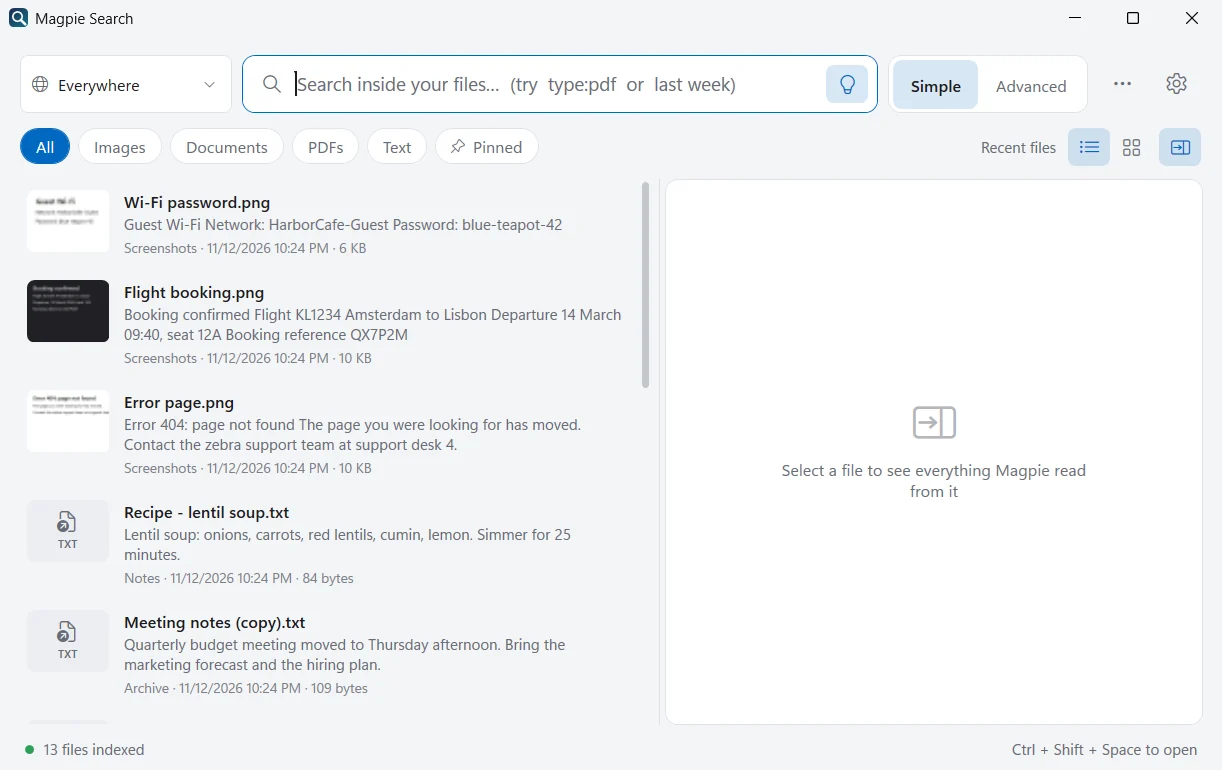
If you need to search the contents of every file in a few folders, including pictures, scanned PDFs and Markdown notes, and see the matching text immediately, a dedicated tool is simpler than tuning the Windows index. Magpie Search:
- Reads every supported file in the folders you choose, regardless of the Windows index settings.
- Reads text in pictures and scanned PDF pages with on-device OCR.
- Shows the full extracted text with every match highlighted, so you can see why a file matched.
- Watches the folders live, so new and changed files are searchable within moments.
- Has a query language (
type:pdf,modified:7d,re:"INV-\d+") and plain-English dates.
A two-minute diagnosis
Not sure which cause you're dealing with? Try this with one file you know contains a word:
- Open the file's folder and search for
content:theword. If it's found here but not from the Start menu, the problem is where you're searching, not the index. - If it's not found, search for part of the file name. If the name is found but not the content, check the file type setting.
- If the name isn't found either, the folder isn't indexed or the index is broken: add the location, then rebuild if needed.
- If the word is only visible in a picture or a scanned page, no Windows setting will help; see Fix 3.
If a file still doesn't show up in Magpie, check that its folder is in Settings › Folders (with Subfolders ticked), that its kind is ticked in Settings › Indexing, and that it isn't one of the skipped kinds: hidden or system files, files in node_modules, .git, bin or obj, files over 300 MB, or old .doc/.xls/.ppt files.
Windows Search and Magpie side by side
| Windows Search | Magpie Search | |
|---|---|---|
| Apps, settings, web results | Yes | No |
| Which folders | Indexed locations | The folders you add |
| Text in pictures and scans | TIFF only (optional filter) | Yes, with OCR |
| Shows the matching text | No | Yes, highlighted in a preview |
| Search by meaning | Only on Copilot+ PCs | Optional, on any PC |
Frequently asked questions
How long does it take to rebuild the Windows Search index?
From minutes to many hours, depending on how many files are in the indexed locations and how busy the PC is. Windows indexes more slowly while you're using the PC.
Should I turn on Enhanced search in Windows 11?
Enhanced indexes your whole PC instead of just libraries and the desktop. It finds more, but the first indexing takes longer and uses more battery. Adding only the folders you care about in Indexing Options is often the better balance.
Does Magpie replace Windows Search?
No. Windows Search stays the best way to open apps and settings from the Start menu. Magpie is for the contents of your files in the folders you choose, including text in pictures. They run side by side.