 Magpie Search
How to find a screenshot by the text in it on Windows 10 and 11
Where Windows keeps your screenshots, and how to find one by a word you remember from it.
The short answer: Windows saves screenshots as pictures, and Windows Search can't read the words in pictures. So you can find a screenshot by its date or file name, but not by the text you remember from it. To search screenshots by their text, use a tool that reads every screenshot with OCR and keeps the result, such as Magpie Search. Then you type the word and the screenshot appears.
Step 1: know where your screenshots are
Before searching, it helps to know where Windows puts them.
| How you took it | Where it goes |
|---|---|
| Win+PrtScn | Pictures › Screenshots (a PNG named “Screenshot” plus a date or number) |
| Win+Shift+S / Snipping Tool (Windows 11) | Pictures › Screenshots, if automatic saving is on (it is by default); otherwise only the clipboard |
| PrtScn alone | The clipboard, or the Snipping Tool if “Use the Print screen key to open screen capture” is on |
| Xbox Game Bar (Win+Alt+PrtScn) | Videos › Captures |
| Chat apps, browsers, phone sync | Usually Downloads, or the app's own folder |
If Pictures is synced with OneDrive, the Screenshots folder may be inside your OneDrive folder instead.
Step 2: what File Explorer search can do
If you remember roughly when you took the screenshot, File Explorer can narrow it down:
- Open Pictures › Screenshots.
- Switch to Large icons (View › Large icons) so you can see the pictures.
- Type
datemodified:last weekin the search box, or sort by Date modified. - Scroll and look.
This works when you have a few dozen screenshots. With hundreds, scrolling through thumbnails is slow, and screenshots of text all look alike at thumbnail size. Typing a word from the screenshot won't help, because Explorer only matches file names and properties for pictures.
Step 3: reading one screenshot's text
Once you've found a candidate, Windows can read its text:
- Snipping Tool (Windows 11): open the snip and click Text actions, then Copy all text.
- PowerToys Text Extractor: open the picture, press Win+Shift+T and select the text.
Neither keeps the text afterwards, so they don't help you find a screenshot. They only read the one you already have open.
The fast way: search every screenshot by its text
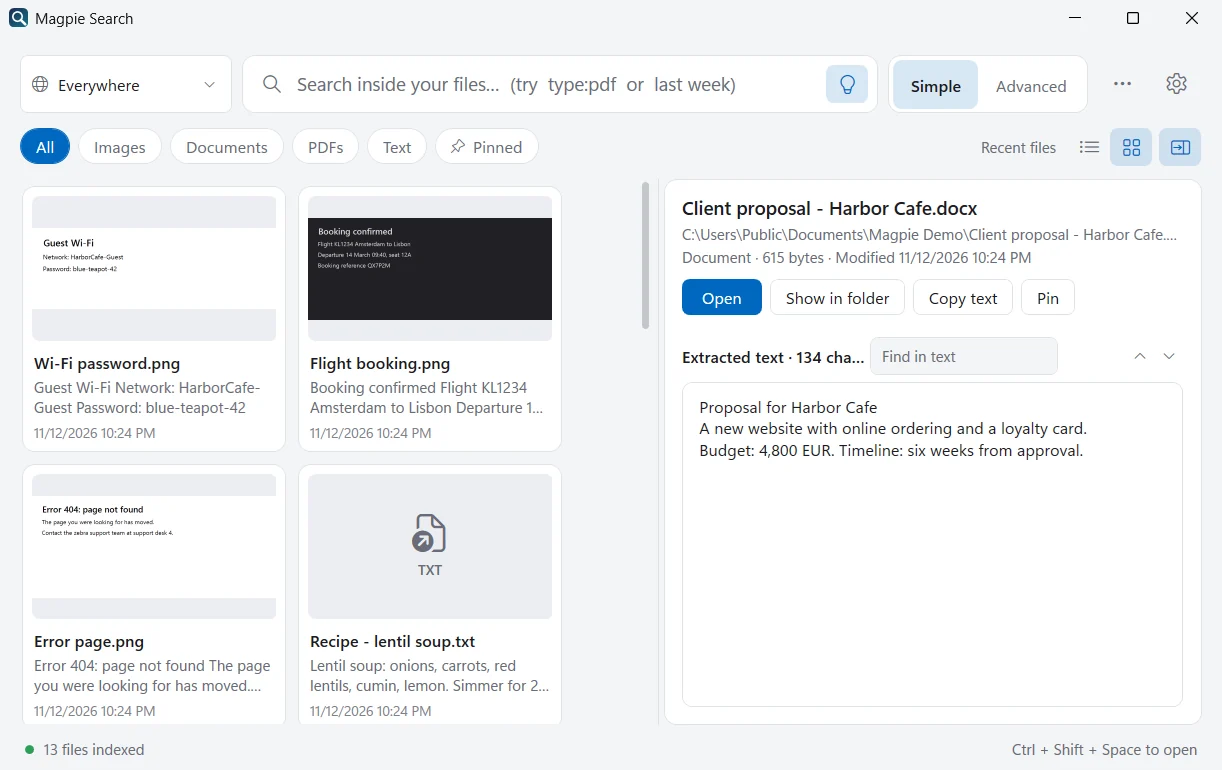
Magpie Search reads every screenshot in the folders you choose, recognises the text on your PC, and keeps it in a local index. After that, finding a screenshot is just typing.
- Install Magpie Search (free) and start it.
- Pick your Screenshots folder. The setup suggests Screenshots, Pictures, Desktop, Documents and Downloads. Start with one; add more in Settings › Folders.
- Click Start reading. You can start searching straight away; Magpie keeps reading in the background and the status line shows its progress.
- Type what you remember: a name, an amount, part of an error message, a booking code. Partial words match, so
QX7PfindsQX7P2M. - Press Enter to open the screenshot, Ctrl+C to copy the picture into a chat or email, or Ctrl+Shift+C to copy its text.
Searches that work well for screenshots
- screenshots from last week
- type:image error
- "order number"
- type:image modified:7d invoice
- re:"[A-Z0-9]{6}"
Plain-English dates like last week or yesterday filter by when the file changed. re: searches with a regular expression, handy for codes and reference numbers you only half remember.
If the screenshot was never saved
A screenshot taken with PrtScn or Win+Shift+S may only have gone to the clipboard. If clipboard history is on, it may still be there:
- Press Win+V to open clipboard history.
- Scroll through the recent items; pictures appear as thumbnails.
- Click one to paste it, for example into Paint, then save it.
Clipboard history keeps a limited number of recent items and is cleared when you restart, except for items you pin. If it's off, turn it on under Settings › System › Clipboard so it helps next time. On Windows 11, also check that the Snipping Tool's Automatically save screenshots setting is on.
Habits that make screenshots easier to find
- Keep them in one place. Saving screenshots to Pictures › Screenshots (the default) means one folder covers almost all of them.
- Pin the important ones. In Magpie, Ctrl+D pins a result; the Pinned chip lists them all.
- Clean up duplicates. The same screenshot often ends up in Downloads and Screenshots. Magpie's duplicate finder (in the ⋯ menu) groups identical files and moves extra copies to the Recycle Bin only after you confirm.
- Add your languages. If you screenshot text in more than one language, tick them in Settings › Text recognition.
If Magpie doesn't find the screenshot
- Is the folder added? Check Settings › Folders, and tick Subfolders if your screenshots are sorted into folders.
- Is it still reading? The status line shows what Magpie is doing. Pictures are read after documents and notes, one at a time.
- Is the text in another language? Tick it in Settings › Text recognition; pictures are read again automatically.
- Is the text tiny? Very small or blurry text may not be readable. Try a word that was larger in the screenshot, such as a heading.
- Try fewer words. All the words you type must appear. One distinctive word often works better than a whole sentence.
- Try Typo-tolerant in Advanced search (Ctrl+2), which also finds words where OCR misread a letter or two.
Sharing the screenshot once you've found it
Finding the screenshot is usually step one of sending it to someone. From Magpie's results:
- Ctrl+C copies the picture itself. Paste it straight into a chat, an email or a document.
- Drag the result into an email, a chat app or a folder.
- Ctrl+E shows the file in File Explorer, and right-click › Copy path copies its location.
- Ctrl+Shift+C copies just the text, when the other person only needs the code or address.
Before sharing a screenshot widely, look for anything personal in it. The Windows 11 Snipping Tool's Quick redact (under Text actions) can hide email addresses and phone numbers in a snip.
Frequently asked questions
Where does Windows save screenshots?
Win+PrtScn saves a full-screen PNG to Pictures › Screenshots. On Windows 11, the Snipping Tool also saves snips there automatically unless you turned that off. A plain PrtScn may only copy to the clipboard, and game captures from Xbox Game Bar go to Videos › Captures.
Can I search screenshots by text without installing anything?
Not across many screenshots. Windows can read the text of one picture at a time (Snipping Tool Text actions, PowerToys Text Extractor), but it doesn't keep that text, so File Explorer can only search screenshot names and dates.
Does Magpie search screenshots in OneDrive?
Magpie reads the folders you add on your PC. If your Screenshots folder is synced with OneDrive and the files are on your PC, add that folder like any other.