 Magpie Search
How to copy text from a screenshot or picture on Windows
Four ways to get text out of a picture on Windows, from a quick snip to every screenshot you own.
The short answer: on Windows 11, open the screenshot in the Snipping Tool, click Text actions and choose Copy all text. On Windows 10 or 11, install the free PowerToys, press Win+Shift+T and drag around the text. To copy text from a picture you took weeks ago, without first hunting for it, use Magpie Search: find the picture by a word in it and press Ctrl+Shift+C.
Method 1: Snipping Tool Text actions (Windows 11)
Best for: something on your screen right now.
- Press Win+Shift+S and drag around the area with the text.
- Click the notification that appears to open the snip in the Snipping Tool.
- Click Text actions in the toolbar. The text Windows recognised is highlighted.
- Click Copy all text, or select part of the highlighted text and press Ctrl+C.
- Paste with Ctrl+V.
Text actions also offers Quick redact, which hides email addresses and phone numbers before you share a screenshot. If you don't see Text actions, update the Snipping Tool from the Microsoft Store.
Method 2: PowerToys Text Extractor
Best for: Windows 10, or copying text from anything visible, including videos and apps that block selecting text.
- Install Microsoft PowerToys from the Microsoft Store.
- Open PowerToys, go to Text Extractor and make sure it's turned on.
- Open the picture, or show whatever has the text on screen.
- Press Win+Shift+T. The screen dims.
- Drag a box around the text. It's copied to the clipboard straight away.
Text Extractor uses Windows' built-in OCR, so it reads only languages that have OCR support installed in Windows. You can pick the language in its settings.
Method 3: OneNote
Best for: pictures you keep in notebooks anyway.
- Paste or insert the picture into a OneNote page.
- Right-click the picture and choose Copy Text from Picture.
- Paste the text wherever you need it.
Method 4: Magpie Search, for pictures you've already saved
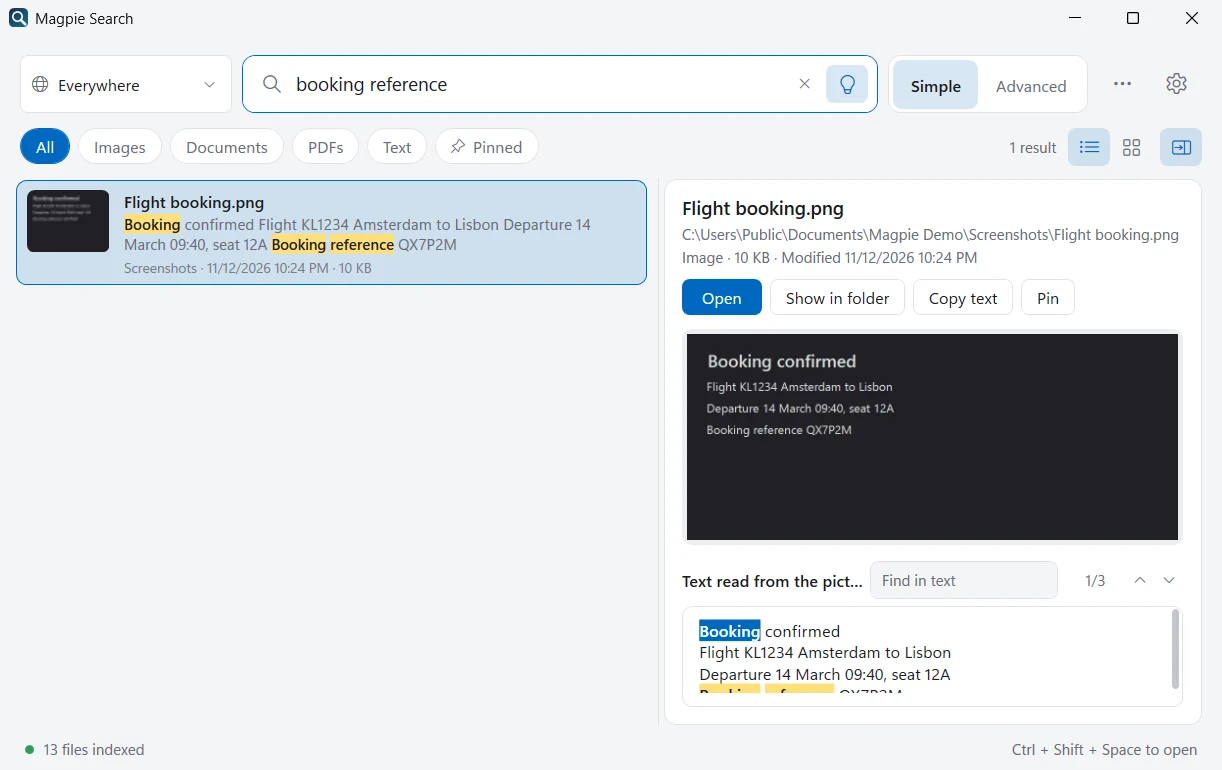
Best for: getting text from a screenshot or photo you saved earlier and can't find. Magpie reads every picture in the folders you choose with on-device OCR, so the text is already waiting.
- Press Ctrl+Shift+Space to open Magpie Search.
- Type a word you remember from the picture.
- Select the result. The preview shows the picture above the text Magpie read from it.
- Press Ctrl+Shift+C (or click Copy text) to copy all of it, or select part of the text in the preview and copy that.
Ctrl+C instead copies the picture itself, ready to paste into a chat or document.
Copying text from a PDF that won't let you select it
If you can't select text in a PDF, the page is usually a scanned image. The options are the same as for pictures: PowerToys Text Extractor on the page as it's shown on screen, or Magpie Search, which reads scanned PDF pages with OCR. Find the PDF in Magpie, select it, and use Copy text to copy everything that was read from it.
Copying text from many pictures at once
Snipping Tool and PowerToys work one picture at a time. If you need the text of a batch of pictures, for example twenty photos of whiteboard notes, Magpie is quicker: add their folder, wait for it to read them, then open each result and press Ctrl+Shift+C. Searching in:whiteboard type:image (any part of the folder name works) lists just those pictures.
Which method should you use?
| Method | Windows | Works on saved pictures | Finds the picture for you |
|---|---|---|---|
| Snipping Tool Text actions | 11 | On a new snip | No |
| PowerToys Text Extractor | 10 and 11 | Yes, once it's on screen | No |
| OneNote | 10 and 11 | Yes, after inserting it | Only inside OneNote |
| Magpie Search | 10 (2004+) and 11 | Yes | Yes, by the text in it |
What about online OCR websites?
Upload sites and some AI assistants can read text from pictures too, but they send your picture to their servers. Screenshots often contain addresses, chats, passwords or account numbers, so it's worth using a method that runs on your PC. All four methods above do.
Getting cleaner text
- Zoom in before you take the screenshot. Larger text is recognised more reliably.
- Crop out busy backgrounds, logos and icons.
- For text in other languages, install the language (Windows OCR) or tick it in Magpie's Settings › Text recognition.
- Check numbers and codes after pasting. OCR can confuse similar shapes, such as 0 and O or 1 and l.
Tidying the pasted text
OCR keeps the line breaks it sees, so text from a narrow column pastes as many short lines. In Word, Paste › Keep Text Only avoids stray formatting; to join lines, use Replace (Ctrl+H), search for ^p and replace it with a space. In a plain editor like Notepad, you can do the same with Replace and a regular-expression-capable editor such as VS Code (search \n, replace with a space).
Text in other languages
PowerToys Text Extractor reads the languages that Windows OCR supports on your PC; you can add OCR languages with a PowerShell command. Magpie Search has its own 17 language packs, including Persian, Arabic, Chinese, Japanese, Korean, Hindi and Hebrew, and reads screenshots that mix English with Persian or Arabic. See reading text in images in other languages for the steps.
Frequently asked questions
Which method works on Windows 10?
PowerToys Text Extractor and OneNote both work on Windows 10. Text actions are a feature of the Windows 11 Snipping Tool. Magpie Search works on Windows 10 version 2004 or later and Windows 11.
Why is the copied text jumbled or wrong?
OCR struggles with very small, blurry, rotated or stylised text, and with backgrounds that are busy. Zoom in before taking the screenshot, or crop to the part you need. For text in other languages, make sure that language is installed for the tool you use.
Can I copy text from a picture on my phone and paste it on the PC?
Many phones can recognise text in photos. Copying that text to the PC usually goes through a cloud clipboard or chat app. If the picture is already on your PC, the methods in this guide work without sending it anywhere.