 Magpie Search
How to read and search text in images in other languages on Windows
Add OCR languages to Windows, and search screenshots in Persian, Arabic, Chinese, Hindi and more.
The short answer: Windows' built-in OCR (used by PowerToys Text Extractor) reads a language only if its OCR component is installed, and it doesn't cover every script. Check and add languages with two PowerShell commands, shown below. To search screenshots in other languages, and read mixed-language ones such as English with Persian or Arabic, Magpie Search offers 17 OCR language packs covering more than 50 languages, all running on your PC.
How Windows OCR handles languages
Windows includes an OCR engine that apps can use, but each language needs its own optional component. Adding a display or keyboard language in Settings often adds its OCR component too, but not always, and some languages have no Windows OCR component at all.
See which OCR languages you have
- Right-click Start and open Terminal (Admin) or Windows PowerShell (Admin).
- Run:
Get-WindowsCapability -Online | Where-Object Name -Like 'Language.OCR*' - Each line is one OCR language. State: Installed means it's ready; NotPresent means it can be added.
Add an OCR language
Copy the exact Name from the list and run, for example:
Add-WindowsCapability -Online -Name "Language.OCR~~~ar-SA~0.0.1.0"If your language isn't in the list at all, Windows OCR can't read it, and neither can tools built on it, such as PowerToys Text Extractor.
Reading text from one picture
- PowerToys Text Extractor (Win+Shift+T): choose the OCR language in its settings, or let it use your preferred language.
- Snipping Tool Text actions (Windows 11) and OneNote also read text from pictures, with language support that depends on your setup.
These read one picture at a time and keep nothing, so they don't make a folder of screenshots searchable.
Why some scripts are harder
- Right-to-left scripts (Persian, Arabic, Urdu, Hebrew) join letters and change their shape by position, and screenshots often mix them with left-to-right English and numbers.
- Chinese, Japanese, Korean and Thai don't separate words with spaces, so a search engine that splits text at spaces can't find part of a phrase.
- Letter variants: Persian and Arabic have similar letters with different codes (for example two forms of yeh and kaf), and different digit sets, so a search can fail even when the text was read correctly.
Searching other languages with Magpie Search
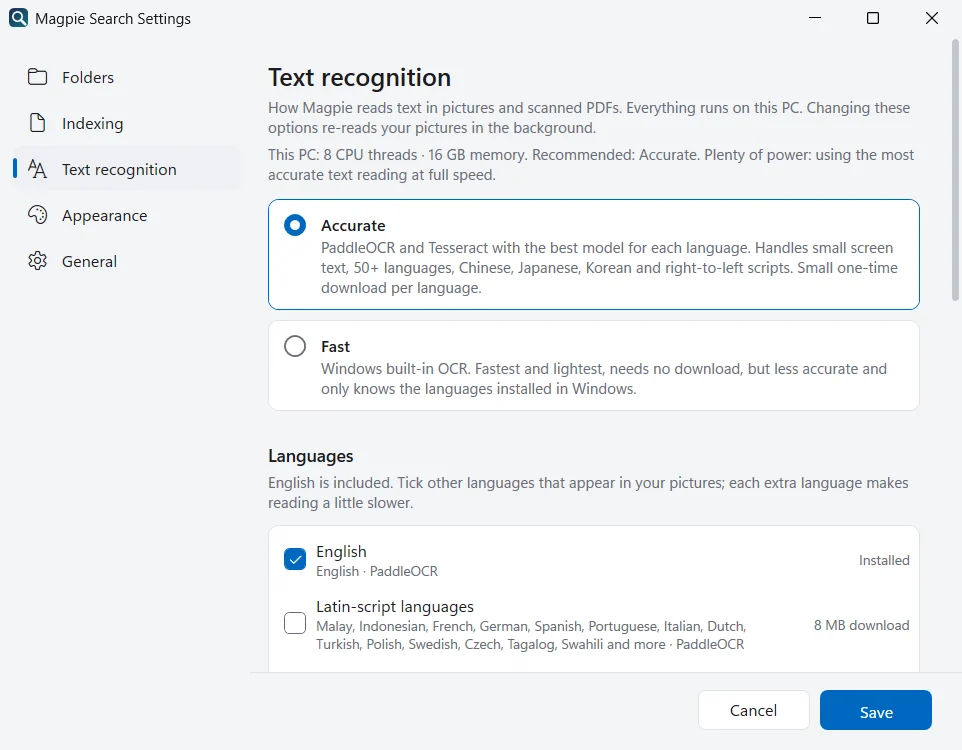
Magpie Search reads pictures with PaddleOCR and Tesseract and offers 17 language packs covering more than 50 languages:
Latin-script languages · Chinese · Japanese · Korean · Cyrillic · Greek · Thai · Hindi · Tamil · Telugu · Persian · Arabic · Urdu · Hebrew · Bengali · Vietnamese
- Open Settings › Text recognition. English is on by default.
- Tick the languages that appear in your pictures. Each is a one-time download of about 8–25 MB and can be removed later.
- Save. Pictures are read again automatically with the new languages.
- Search in any of them. Type in the language as you normally would.
What Magpie does for mixed and non-Latin text
- Mixed lines: a detector finds every line of text, recognisers for your languages read each line, and the most confident reading wins. Lines in Persian, Arabic and similar scripts are read by Tesseract.
- Normalisation: Persian and Arabic letter variants and digits are normalised, so searches match the way people type.
- Per-character indexing for Chinese, Japanese, Korean and Thai, so any part of a phrase matches.
- Dark-mode screenshots are handled too.
Choose Accurate mode (PaddleOCR and Tesseract) for these languages. Fast mode uses Windows' built-in reader and depends on the Windows OCR languages described above.
Checking what was recognised
After adding a language, it's worth checking one picture:
- Search for a word you can see in the picture, or open it from the Images chip.
- Look at Text read from the picture in the preview pane. It shows exactly what Magpie read.
- If a line is missing or garbled, make sure its language is ticked, and that Settings › Text recognition is set to Accurate.
Fast or Accurate?
| Fast | Accurate | |
|---|---|---|
| Engine | Windows' built-in text reader | PaddleOCR and Tesseract, the best model per language |
| Languages | Those with Windows OCR support on your PC | The 17 language packs you tick in Magpie |
| Best for | Light PCs, mostly-English pictures | Small screen text, mixed scripts, Persian, Arabic, Hindi and others |
| Chosen by default | On light PCs | On medium and strong PCs |
Searching by meaning across languages
With the Multilingual model for Find by meaning (about 118 MB, about 100 languages, including Persian, Arabic and Chinese), Magpie can also find files that are about your query in the languages the model understands. Turn it on in Settings › Indexing › Find by meaning. How meaning search works.
Tips for better results
- Only tick languages you need. Every extra recogniser adds a little reading time per picture.
- Bigger text reads better: zoom in before taking a screenshot of small print.
- If a word isn't found, search a shorter part of it, or try Typo-tolerant in Advanced search.
Typing your search in another language
To search in Persian, Arabic, Chinese or any other script, you need a keyboard layout for it:
- Open Settings › Time & language › Language & region (Windows 11) or Settings › Time & Language › Language (Windows 10).
- Click Add a language, choose the language, and install at least its keyboard.
- Switch between layouts with Win+Space.
You can type your search in Magpie in any layout. Because Magpie normalises Persian and Arabic letter variants and digits, it doesn't matter whether your keyboard produces the Arabic or Persian form of a letter.
Frequently asked questions
Can Magpie read a screenshot that mixes English and Persian?
Yes. Tick Persian in Settings › Text recognition. Magpie finds every line of text and reads each one with the recognisers for your languages, keeping the most confident reading, so mixed English and Persian or Arabic screenshots work.
Do I need to type Persian or Arabic letters exactly as written?
No. Magpie normalises Persian and Arabic letter variants and digits before indexing, so you can type them the way your keyboard produces them.
Why does searching part of a Chinese word work in Magpie?
Chinese, Japanese, Korean and Thai don't put spaces between words, so Magpie indexes them per character. Any part of a word or phrase can then be found.
How much space do the languages take?
Each language pack is a one-time download of about 8–25 MB and can be removed again in Settings › Text recognition to free the space.