 Magpie Search
How to find duplicate files on Windows 11 safely
Find true duplicates by content, not by name, and remove them without risking the wrong file.
The short answer: Windows 11 has no duplicate file finder. The safe way to find duplicates is to compare file content, not names: group files by size, then compare a SHA-256 fingerprint of each. You can do that with a PowerShell command, or with Magpie Search's duplicate finder, which does the same comparison and only ever moves a copy you've chosen to the Recycle Bin.
What “safely” means
Duplicate cleaners have a reputation for deleting the wrong thing. Four rules avoid that:
- Compare content, not names. Invoice.pdf and Invoice (1).pdf may differ; IMG_2041.jpg and beach.jpg may be identical.
- Only touch your own folders. Never clean duplicates in C:\Windows, Program Files or AppData; apps rely on their own copies of files.
- Use the Recycle Bin, not permanent delete. If you remove the wrong copy, you can restore it.
- Decide which copy to keep yourself. Keep the one in the folder where you'd look for it.
Method 1: a quick look in File Explorer
For a small folder, File Explorer can surface likely duplicates:
- Open the folder and switch to Details view (View › Details).
- Click the Size column to sort by size. Files of exactly the same size end up next to each other.
- Look for repeated sizes with similar names, such as “(1)” or “- Copy”.
Limit: same size doesn't prove same content, it doesn't look into subfolders unless you search with * first, and it's impractical for thousands of files.
Method 2: PowerShell with SHA-256 hashes
PowerShell can find exact duplicates without installing anything. This command looks in your Documents folder, groups files by size, hashes only the files that share a size, and prints each group of identical files:
Get-ChildItem "$env:USERPROFILE\Documents" -Recurse -File |
  Group-Object Length | Where-Object Count -gt 1 |
  ForEach-Object { $_.Group | Get-FileHash -Algorithm SHA256 } |
  Group-Object Hash | Where-Object Count -gt 1 |
ForEach-Object { $_.Group.Path; "" }- Open the Start menu, type PowerShell and open Windows PowerShell (no admin rights needed).
- Paste the command and press Enter. Change the folder path if you like.
- Each block of paths is one set of identical files.
- Delete extra copies yourself in File Explorer, so they go to the Recycle Bin.
Limits: hashing large folders takes time; there's no preview; and if the folder is synced with OneDrive using Files On-Demand, hashing cloud-only files downloads them first.
Comparison
| Method | Compares content | Preview | Removal |
|---|---|---|---|
| File Explorer, sort by size | No | Yes | Manual |
| PowerShell Get-FileHash | Yes, SHA-256 | No | Manual |
| Magpie Search duplicate finder | Yes, SHA-256 | Yes, open or show in folder | Recycle Bin only, after you confirm |
Method 3: Magpie Search's duplicate finder
If you use Magpie Search, it already knows every file in your folders. Its duplicate finder lists files with exactly the same content, wherever they are and whatever they're called.
- Open Magpie Search (Ctrl+Shift+Space).
- Click the ⋯ button next to the search box and open the duplicate finder.
- Magpie first groups files of exactly the same size, which is instant because sizes are already in its index, then compares their content with a SHA-256 fingerprint.
- For each group, open a copy or show it in its folder to decide which one to keep.
- Choose the copy to remove and confirm. It's moved to the Recycle Bin.
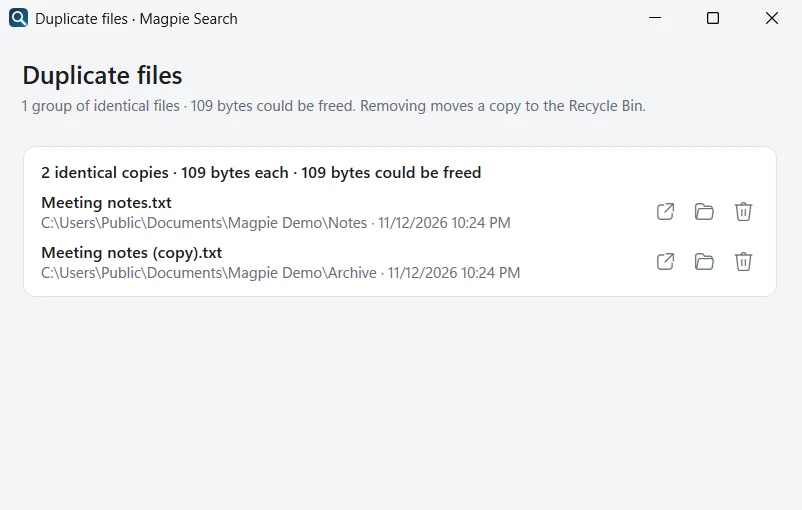
Magpie never deletes anything permanently and never changes the copy you keep. It only covers the folders you've added to Magpie, so system and program folders are out of reach by design.
Where duplicates usually hide
- Downloads: the same attachment saved twice, named file (1).pdf, file (2).pdf.
- Phone imports: photos imported again from the same phone into a new folder.
- Old backups: a copy of Documents made before a PC move and never removed.
- Screenshots: a screenshot saved in Pictures › Screenshots and again in Downloads after sharing.
- Synced folders: the same files both inside and outside a OneDrive or Dropbox folder.
Exact duplicates versus “almost the same”
A hash comparison finds files that are identical byte for byte. It doesn't find a photo that was resized, cropped or re-saved, or a document with one word changed; those have different content and different fingerprints. That's a feature when you're deleting: nothing that differs, however slightly, is ever reported as a duplicate. For near-duplicate photos you'd need a separate image-comparison tool, and you should review its matches carefully.
After cleaning up
- Check the Recycle Bin before emptying it, especially after a big clean-up.
- Find where duplicates come from. Often it's downloading the same attachment twice, or a folder copied as a backup. Fixing the habit beats cleaning twice a year.
- Pin the copy you keep in Magpie (Ctrl+D) if it's a file you use often.
Which copy should you keep?
When two files are identical, the content is the same, so the choice is about where the file should live. A few rules of thumb:
- Keep the one in the organised folder (Documents › Tax) and remove the one in Downloads or Desktop.
- Keep the one with the better name. 2026 Lease agreement.pdf beats scan0004.pdf.
- Keep the copy inside your backed-up or synced folder if only one of them is backed up.
- Leave app folders alone. If one copy is inside a program's folder, keep it; the app may need it there.
If in doubt, leave both. A duplicate costs a little disk space; deleting the copy an app or a shortcut relies on costs more.
Frequently asked questions
Does Windows 11 have a built-in duplicate file finder?
No. Windows has no duplicate finder. You can compare files with PowerShell's Get-FileHash, or use a tool that does the comparison for you.
Are files with the same name always duplicates?
No. Two files called report.docx can be completely different, and two copies of the same file can have different names. Only comparing the content, for example with a SHA-256 hash, tells you for sure.
What does SHA-256 mean?
SHA-256 turns a file's content into a 64-character fingerprint. Identical files always give the same fingerprint; files that differ by even one byte give a completely different one. That makes it a reliable way to spot exact duplicates.
Does Magpie delete duplicates automatically?
No. Magpie's duplicate finder only lists identical files. You choose which copy to remove, confirm, and it's moved to the Recycle Bin, so you can always restore it. Magpie never deletes anything permanently.