 Magpie Search
How to search the contents of Word, Excel and PowerPoint files without opening them
Find the document, spreadsheet or slide deck that contains a phrase, without opening them one by one.
The short answer: File Explorer can search inside Word, Excel and PowerPoint files without opening them, as long as the folder is indexed by Windows Search: type content: followed by your word in the Explorer search box. It shows which files match but not where, and it skips folders that aren't indexed. A dedicated search tool such as Magpie Search reads every document in your chosen folders, shows the matching text with highlights, and also covers PDFs, notes and pictures.
Method 1: File Explorer content search
Windows includes content filters for modern Office files (.docx, .xlsx, .pptx and their macro-enabled versions), so Windows Search can index their text.
- Open the folder that contains your documents in File Explorer.
- Click the search box (or press Ctrl+E).
- Type
content:"quarterly budget". The quotes keep the phrase together;content:limits the match to the text inside files. - To narrow by type, add
ext:.xlsxorkind:document.
If nothing is found
The folder probably isn't indexed. In Explorer, search in non-indexed folders matches file names only unless you change one option:
- In File Explorer, open ⋯ › Options (Windows 11) or View › Options (Windows 10), then the Search tab.
- Tick Always search file names and contents (this might take several minutes).
This makes searches slower, because Windows reads each file every time. The better fix is to add the folder to the index: Start › Indexing Options › Modify, and tick the folder.
Limits: results show file names without the matching sentence; the Explorer preview pane (Alt+P) can show a document, but usually only with Office installed and without highlighting your word; and the index may take time to catch up with new files.
Method 2: search inside Office apps
Word, Excel and PowerPoint can search inside the file you have open (Ctrl+F). Excel's Find and Replace (Ctrl+F › Options › Within: Workbook) searches every sheet of one workbook. The Office start screen and Microsoft 365 search can find content in files stored in OneDrive or SharePoint, which means those files live in the cloud. None of these search a local folder of documents without opening them.
Why a plain text search doesn't work
A .docx file is really a ZIP archive with XML inside. Tools like findstr or PowerShell's Select-String see compressed data and won't find your words. That's why you need either the Windows index (which uses a content filter) or a tool that opens the package and reads the XML.
Comparison
| File Explorer | Office apps | Magpie Search | |
|---|---|---|---|
| Searches many files at once | Yes, in indexed folders | No (one open file) | Yes |
| Shows the matching text | No | Yes, in the open file | Yes, highlighted |
| Comments, speaker notes | Depends on the filter | Yes | Yes |
| Needs Office installed | No | Yes | No |
| Also searches PDFs, notes, pictures | Partly | No | Yes |
Method 3: Magpie Search
Magpie Search reads every Word, Excel, PowerPoint, OpenDocument and RTF file in the folders you choose: body text, tables, every cell on every sheet, slide text, speaker notes, footnotes and comments. It keeps the text in a local index, so searching is instant.
- Install Magpie Search and choose the folder with your documents on first run.
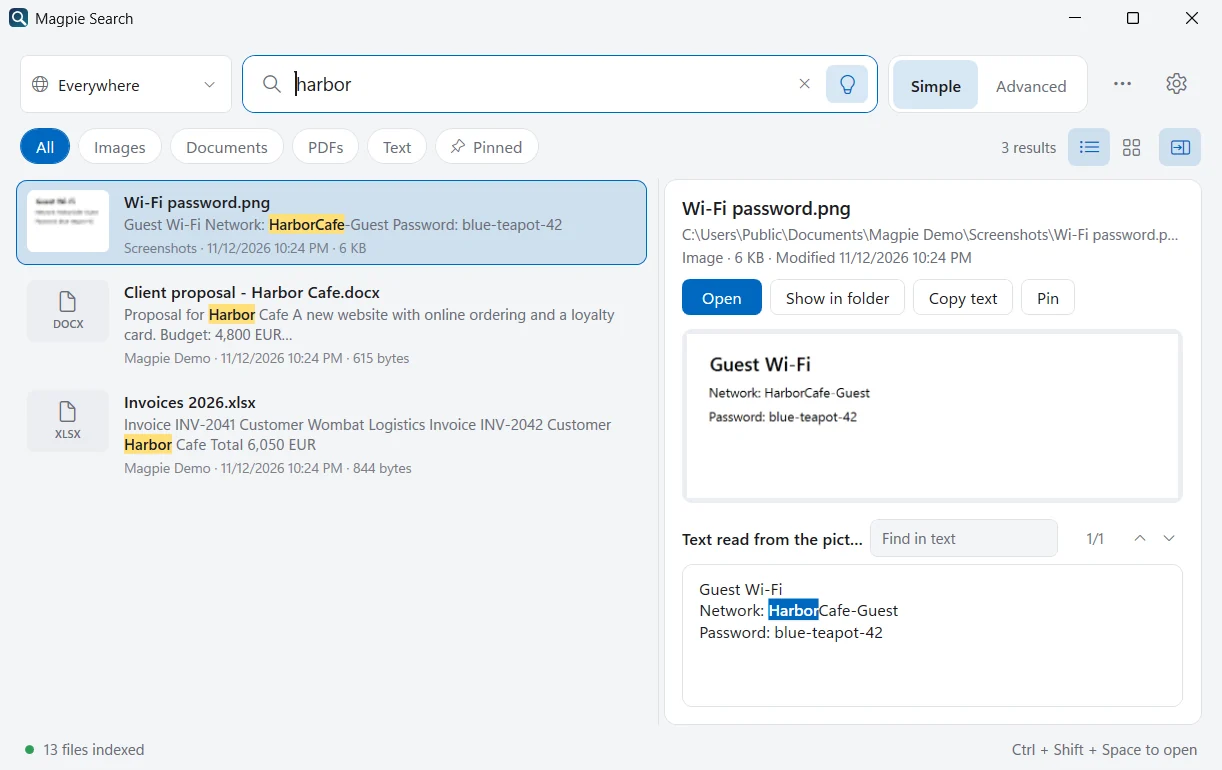
- Type a word or phrase. Results appear as you type, best matches first, with a snippet that highlights your words.
- Select a result. The preview pane on the right shows all the text Magpie read from the file. Press F3 to move between matches.
- Open it with Enter, or press Ctrl+E to show it in Explorer.
Searches for documents
- type:doc budget -draft
- ext:xlsx INV-2042
- name:report modified:2026-03
- content:"next steps" sort:newest
- in:clients proposal
type:doc covers Word, Excel, PowerPoint, OpenDocument and RTF. in: matches part of the folder path. Can't remember the exact words? Turn on Find by meaning and describe the document instead.
What exactly is read from each kind of file
| File | What Magpie reads |
|---|---|
| Word (.docx, .docm), OpenDocument text (.odt), .rtf | Body text, tables, footnotes and comments |
| Excel (.xlsx, .xlsm), OpenDocument spreadsheets (.ods) | The text of the cells on every sheet |
| PowerPoint (.pptx, .pptm), OpenDocument presentations (.odp) | Slide text and speaker notes |
A spreadsheet's cells come out as plain text in reading order, so a search for a customer name and an amount on the same row finds the sheet. The preview shows the extracted text, not the formatting; open the file to see it as designed.
Files stored only in OneDrive or SharePoint
Magpie reads the folders you add on your PC. If OneDrive's Files On-Demand keeps some documents online-only, those files aren't on your disk to read. In File Explorer, right-click a folder and choose Always keep on this device if you want its contents searchable offline.
Tips
- Old formats: .doc, .xls and .ppt files aren't read. Save them as .docx, .xlsx or .pptx if you need them searchable.
- Password-protected documents can only be found by name.
- Typos: Advanced search (Ctrl+2) has a Typo-tolerant option that also finds words with one or two wrong letters.
Finding a document by when you worked on it
Often you remember roughly when as well as what. Magpie's date filters use the date the file last changed:
proposal modified:30d: changed in the last 30 days (d,w,mandyall work).budget after:2026-01-01 before:2026-04-01: changed in the first quarter.type:doc last week: plain-English dates such as yesterday, this month or 3 days ago work too.sort:newestputs the most recently changed files first.
Combine them freely with words and other filters, for example ext:pptx name:pitch sort:newest.
Frequently asked questions
Can I search inside .docx files with PowerShell or findstr?
Not directly. .docx, .xlsx and .pptx files are ZIP packages of XML, so a plain text search over the file finds compressed bytes, not your words. You'd have to unzip each file first. Indexing tools read the XML inside for you.
Does Magpie need Microsoft Office installed?
No. Office and OpenDocument files are ZIP packages of XML, and Magpie reads the text parts directly, so it works on a PC without Office.
Why isn't my old .doc or .xls file found?
Magpie doesn't read the old binary Office formats (.doc, .xls, .ppt). Open the file in Word, Excel or PowerPoint and use File › Save As to save it as .docx, .xlsx or .pptx; the new copy will be read.
Are comments and speaker notes searched too?
Yes. Magpie reads body text, tables, cells, slide text, speaker notes, footnotes and comments.