 Magpie Search
How to search inside PDF files on Windows, even many PDFs at once
Search inside one PDF, a folder full of PDFs, and scanned PDFs that have no text layer.
The short answer: to search inside one PDF, open it and press Ctrl+F. To search many PDFs at once, use Adobe Acrobat Reader's Advanced Search (Ctrl+Shift+F) on a folder, or File Explorer if your PC has a PDF filter installed. Neither finds text in scanned PDFs. For that, you need a tool that runs OCR on pages without text, such as Magpie Search, which also keeps every PDF searchable instantly.
Searching inside one PDF
Every PDF viewer has a find box. In Microsoft Edge (the default PDF viewer on Windows), Acrobat Reader or any other viewer:
- Open the PDF.
- Press Ctrl+F and type the word.
- Press Enter to jump to the next match.
If nothing is found but you can see the word on the page, try selecting text with the mouse. If you can't select it, the page is an image, not text. Skip to scanned PDFs.
Searching many PDFs with File Explorer
File Explorer can search inside PDFs only when two things are true: the folder is in the Windows Search index, and a PDF content filter (an “iFilter”) is registered. Many PCs get one from Adobe Acrobat Reader; some have none.
Check whether your PC can index PDF text
- Open the Start menu, type Indexing Options and open it.
- Click Advanced, then the File Types tab.
- Scroll to pdf. Look at the Filter Description column. If it says File Properties filter, Windows can't read PDF text. If it names a PDF filter, select Index Properties and File Contents and click OK.
- Back in Indexing Options, click Modify and make sure the folder with your PDFs is ticked.
Run the search
Open the folder in File Explorer and type content:deposit ext:.pdf in the search box. content: limits the match to the text inside files, and ext:.pdf to PDFs.
Limits: results only show which files match, with no preview of where. Scanned pages aren't read. Indexing a large folder can take a while, and if the index is rebuilt or the folder isn't indexed, Explorer falls back to searching names only.
Searching a folder with Acrobat Reader
The free Adobe Acrobat Reader can search all PDFs in a folder without the Windows index:
- Open Acrobat Reader and press Ctrl+Shift+F to open Advanced Search.
- Under Where would you like to search?, choose All PDF Documents in and pick the folder.
- Type the word or phrase and click Search.
It lists each match in context, which is handy. Limits: it reads every file every time, so big folders are slow; it only covers PDFs; and scanned pages without text still aren't found unless they've been OCR'd in Acrobat Pro, which is paid.
Scanned PDFs: the pages are pictures
When you scan a document or “print” a photo to PDF, each page is usually an image. There is no text to search until something recognises the letters (OCR). You can check by trying to select text: if the whole page highlights as one block, it's an image.
Your options are to OCR each file in a PDF editor (often paid, and it rewrites your files), or to use a search tool that reads scanned pages itself.
Comparison
| Method | Many PDFs at once | Scanned pages | Speed on big folders |
|---|---|---|---|
| Viewer, Ctrl+F | No | No | Not applicable |
| File Explorer | Yes, if a PDF filter is installed | No | Fast once indexed |
| Acrobat Reader Advanced Search | Yes | Only if already OCR'd | Slow, reads every time |
| Magpie Search | Yes, with other file types | Yes, on-device OCR | Instant once read |
Search every PDF with Magpie Search
Magpie Search reads the text layer of every PDF in the folders you choose. Pages that have no text are rendered and read with OCR on your PC. The text goes into a local full-text index, so searches are instant, and the PDFs sit in the same results as your Word files, notes and screenshots.
- Install Magpie Search and pick the folder with your PDFs on first run (or add it later in Settings › Folders).
- Make sure PDFs are ticked under “Choose what to read” (they are by default).
- Search with Ctrl+Shift+Space. Click the PDFs chip or type
type:pdfto see only PDFs. - Read the match in context. The preview pane shows all the text from the PDF with every match highlighted. Press F3 to jump to the next one.
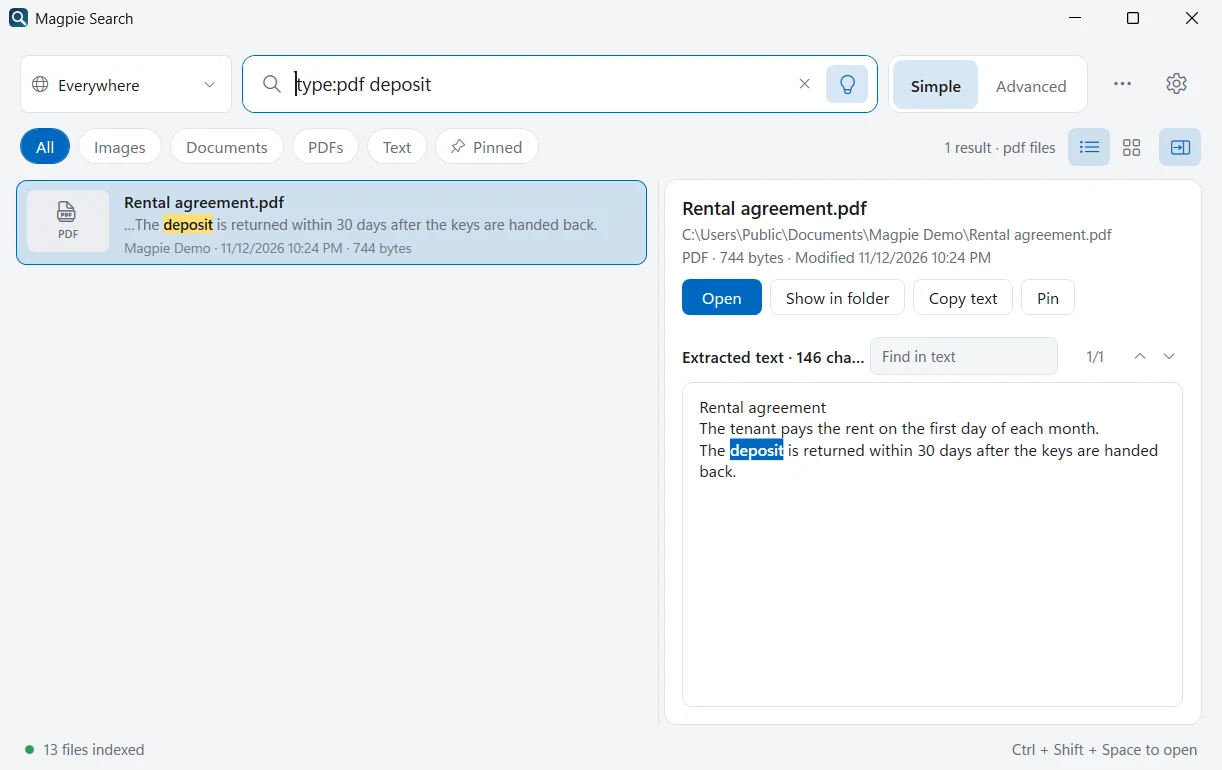
type:pdf deposit: only PDFs that contain “deposit”.Useful PDF searches
- type:pdf "terms and conditions"
- type:pdf invoice last month
- type:pdf size:>10mb
- type:pdf in:contracts -draft
- re:"INV-\d+"
Common reasons a PDF isn't found
- It's a scan and the language isn't ticked. Pages are read with the text-recognition languages you've chosen in Settings › Text recognition.
- The text layer is garbled. Some PDFs are created with fonts that map letters to the wrong characters. You can test this by copying a sentence out of the PDF: if it pastes as nonsense, every search tool sees the same nonsense. Searching for a word you can see won't work; a scanned copy, read with OCR, will.
- It's still in the queue. Large folders take a while on the first run. The status line shows progress.
- The phrase is split. PDFs often break lines and hyphenate words. Search for one or two distinctive words instead of a long phrase.
What to expect
- Password-protected PDFs can only be found by name.
- OCR quality depends on the scan. Clean 300 dpi scans read well; faint photos taken at an angle may not.
- Files over 300 MB are skipped.
- Your PDFs are never changed. Magpie keeps the text it reads in its own database.
Don't forget Downloads and email attachments
Many PDFs never make it into a tidy folder: bank statements, tickets and contracts often stay in Downloads, or in the folder your email app saves attachments to. If you add Downloads to Magpie as well as Documents, a search covers them too, and the folder each result is in is shown under its name. in:downloads type:pdf limits a search to PDFs whose path contains “downloads”.
Frequently asked questions
Why does my PDF search find nothing even though I can see the word?
The PDF is probably a scan or a photo: each page is a picture, so there is no text to search. You need OCR to turn the page into text. Magpie Search does this automatically for pages without a text layer.
Can File Explorer search inside PDFs?
Only if a PDF content filter is registered on your PC and the folder is indexed. Check Indexing Options › Advanced › File Types › pdf: if the filter listed is only the File Properties filter, Explorer can't see the text inside PDFs.
Is a password-protected PDF searchable?
Not by its content. Encrypted PDFs can't be read without the password, so tools including Magpie can only find them by file name.
Does Magpie change my PDFs?
No. Magpie only reads files. It stores the text it extracts in its own database in %LocalAppData%\Magpie and never modifies, moves or adds a text layer to your PDFs.