 Magpie Search
How to search scanned documents and receipts on your PC
Scan paper so it can be read, and find any letter, contract or receipt by a word or amount on it.
The short answer: a scan is a picture of a page, so there's no text in it to search until something reads it with OCR (optical character recognition). Windows doesn't do this for your scans. Scan at 300 dpi, keep the scans in one folder, and let a tool that runs OCR on every file make them searchable. Magpie Search reads scanned PDFs and pictures on your PC, so you can type a name, an amount or a reference number and find the page.
Why scans aren't searchable
When you scan a letter, the scanner captures an image. Even when it saves a PDF, each page is usually just that image wrapped in a PDF file. You can see the words, but the file contains no text. File Explorer, the PDF viewer's find box and Windows Search all look for text, so they find nothing.
Some scanner software can add a text layer with OCR when you scan. If yours does, turn it on. If it doesn't, or you already have years of image-only scans, you need OCR afterwards.
Step 1: scan so the text can be read
OCR is only as good as the image. These habits make the biggest difference:
- Use 300 dpi. In the Windows Scan app (free in the Microsoft Store) or your scanner's software, set the resolution to 300 dpi.
- Choose colour or greyscale for receipts and faint print; black-and-white can lose light text entirely.
- Lay pages flat and straight. Skewed or curled pages are harder to read.
- Phone photos are fine if the page fills the frame, the light is even, and there's no shadow across the text.
- Scan receipts soon. Thermal paper fades; a receipt that's readable today may be blank in a year.
Step 2: keep scans in one folder
Pick a single place, such as Documents › Scans, with subfolders if you like (Receipts 2026, Tax, House). You don't need clever file names once the text is searchable, but a short name such as 2026-03 Electrician invoice still helps when you browse.
Step 3: what you can do with built-in tools
- Windows TIFF IFilter: if your scanner saves .tif files, turn on this optional feature (Control Panel › Programs › Turn Windows features on or off › Windows TIFF IFilter) and add the folder to Indexing Options. Windows Search will then OCR TIFF files in the background. It doesn't read PDF, JPG or PNG scans.
- PowerToys Text Extractor (Win+Shift+T) can copy text from a scan that's open on screen, but doesn't make anything searchable.
- OneNote can find text in pictures inserted into a notebook, if you're happy to keep your scans there.
- PDF editors with OCR can add a text layer to each file. Many are paid, and they rewrite your files.
Step 4: make every scan searchable with Magpie Search
Magpie Search reads scanned PDFs and pictures in the folders you choose. For PDFs it reads the text layer if there is one; pages without text are rendered and read with OCR. Your files aren't changed: the text goes into Magpie's own local database.
- Install Magpie Search and choose your Scans folder on first run, or add it in Settings › Folders.
- Check the languages. English is on by default. If your documents are in other languages, tick them in Settings › Text recognition.
- Let Magpie read. Text-based files are read first; scans and pictures follow in the background at low priority.
- Search for anything printed on the page: the shop, the electrician's name, the policy number, the total.
- Read the result in the preview pane, where every match is highlighted. For pictures, the scan is shown above its text.
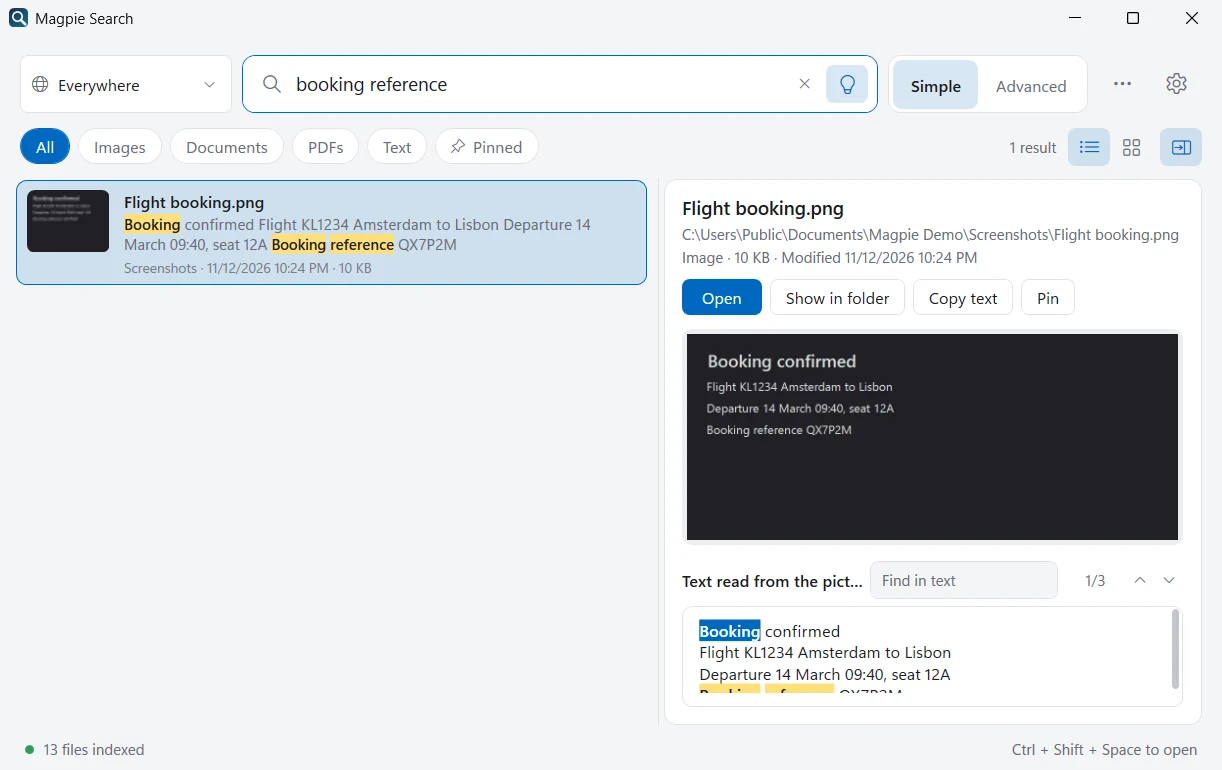
Searches that work well for scans and receipts
| Search | Finds |
|---|---|
receipt total in:receipts | Receipts in a folder whose path contains “receipts” |
type:pdf "policy number" | PDFs with that exact phrase |
type:image warranty | Pictures (photos, scans) that mention a warranty |
re:"\d+[.,]\d{2}" | Anything that looks like an amount with cents |
invoice last month | Files that mention “invoice” and changed last month |
A simple filing system that works with search
Once every scan is searchable, the folder structure only has to be good enough for browsing. A light system many people stick with:
- One root folder, such as Documents › Scans, added to Magpie with subfolders.
- A folder per year for receipts, so
in:2026 receiptnarrows quickly. - A few topic folders for things you keep long-term: House, Car, Health, Tax.
- Pin what matters. Warranty cards, insurance policies and passports can be pinned (Ctrl+D) and listed with the Pinned chip.
Multi-page scans saved as one PDF are read page by page, and the preview shows all of the text, so F3 takes you from match to match across pages.
What to expect from OCR
- Clean, flat 300 dpi scans read very well. Faded thermal receipts, handwriting and tiny print may be partly missed.
- If a word isn't found, try a shorter part of it (partial words match) or turn on Typo-tolerant in Advanced search, which also finds words with one or two letters recognised wrongly.
- Accurate mode (PaddleOCR and Tesseract) reads small print better than Fast mode (Windows' built-in OCR). Magpie picks one at first run based on your PC; change it in Settings › Text recognition.
- Password-protected PDFs can't be read, and files over 300 MB are skipped.
Keeping scanned documents private
Scans tend to be the most sensitive files on a PC: tax returns, medical letters, ID cards, contracts. Many “scan to searchable PDF” services upload them to be processed. Magpie reads them on your PC; the only thing it downloads is the text-recognition model for each language you turn on. For extra protection, keep the PC encrypted (BitLocker or Device Encryption) and signed in with a strong password or Windows Hello.
Frequently asked questions
What resolution should I scan at for OCR?
300 dpi is a good default for documents and receipts. Lower resolutions lose detail in small print; much higher ones make files larger without reading noticeably better.
Should I save scans as PDF or JPG?
Either works with Magpie. PDF is handy for multi-page documents; JPG or PNG is fine for single pages and receipts. Magpie reads pictures with OCR and renders PDF pages that have no text layer and reads them too.
Can I search by the date on the receipt?
You can search for the date as text, for example "14/03/2026" or march 2026 if it's printed that way. Date filters such as modified: or last month use the file's date, which is usually when you scanned it.
Are my scanned documents uploaded anywhere?
Not by Magpie. It reads scans with text recognition on your PC and keeps the text in a local database. Scanning apps and cloud storage have their own policies, so check those separately.