 Magpie Search
Private, offline file search: keeping your documents off the cloud
What different search tools send online, which Windows settings to check, and how to keep search local.
The short answer: searching files in the cloud (OneDrive, Google Drive, Dropbox) means the provider stores and processes your documents, and Windows' Start menu can send what you type to Bing. To keep search private, use a tool that indexes files on your PC and doesn't upload anything, check two Windows settings, and keep the index in your own profile. Magpie Search reads, recognises and searches everything locally; its only internet use is downloading the models you switch on.
Where your searches and files actually go
| Tool | Where files are processed | What goes online |
|---|---|---|
| Cloud drive search (OneDrive, Google Drive, Dropbox) | On the provider's servers | The files themselves, so they can be indexed and searched |
| Online OCR sites and AI chat uploads | On their servers | The picture or document you upload |
| Windows Start menu search | Locally for files; online for web results | What you type can go to Bing for web suggestions; cloud content search can include your Microsoft account files |
| File Explorer search | Locally (Windows Search index) | Nothing for local folders |
| Magpie Search | Locally | Only model downloads you switch on |
Cloud search isn't bad: it's convenient and the big providers protect data seriously. But for tax papers, medical letters, contracts or screenshots of chats, many people prefer that a copy never leaves their PC.
Two Windows settings worth checking
1. Cloud content search
- Open Settings › Privacy & security › Search permissions (Windows 11) or Settings › Search › Permissions & History (Windows 10).
- Under Cloud content search, turn off Microsoft account and Work or school account if you don't want Windows Search to include content from those accounts.
- Under History, decide whether to keep search history on this device, and clear it if you like.
2. What you type in Start
The Start menu can show web results from Bing next to your files, which means what you type there may be sent to Microsoft. Available controls vary by Windows version, region and edition, and some are only available through Group Policy on Pro and Enterprise. If this matters to you, search for files from File Explorer or a local search tool instead of Start.
A checklist for private file search
- Know where the index lives. A local index should sit in your user profile, not in a cloud folder.
- Know what goes online and when. A trustworthy tool says exactly which servers it contacts and why.
- Prefer on-device OCR and AI. Text recognition and meaning search can run on a normal PC today.
- No account, no telemetry. A local search tool has no reason to need either.
- Make it deletable. You should be able to remove every trace by deleting one folder.
- Protect the device. Turn on BitLocker or Device Encryption and use a strong sign-in. A local index is only as private as the PC it's on.
How Magpie Search keeps search local
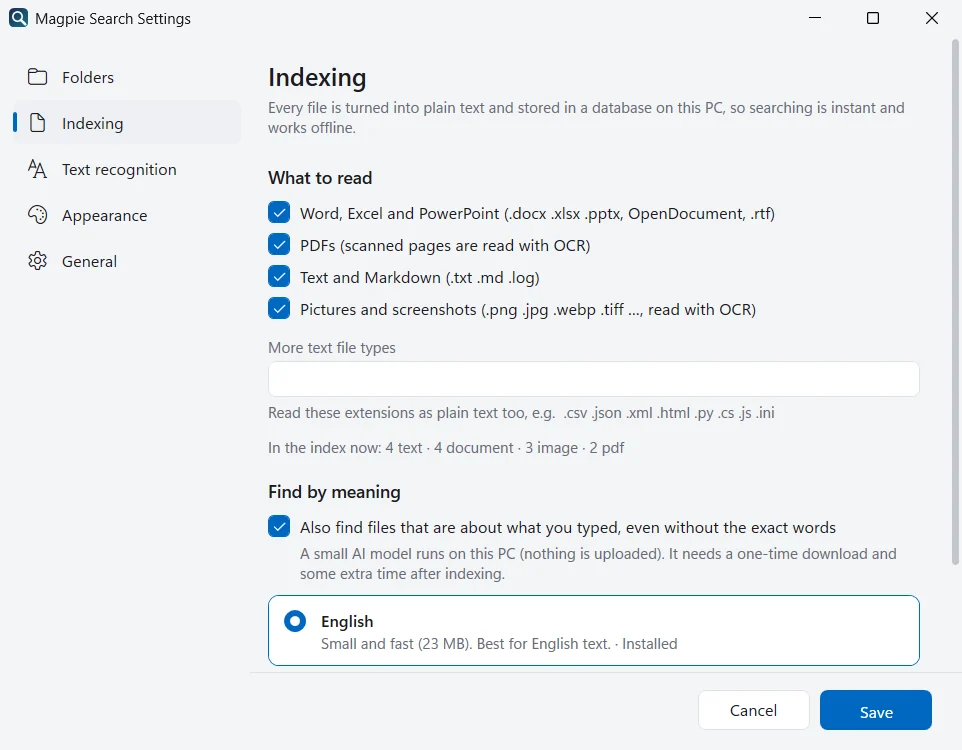
- Everything runs on your PC: text extraction, text recognition (OCR), Find by meaning and search.
- It reads only what you choose: the folders you add and the kinds of files you tick. It never changes your files.
- The only internet access is downloading the models you enable, from huggingface.co, modelscope.cn and github.com. No personal data, file or text is sent.
- No account, no ads, no analytics, no tracking.
- One folder holds everything:
%LocalAppData%\Magpiecontains the index (magpie.db), settings.json, the models and magpie.log. Settings › General › Open data folder shows it, and deleting it removes everything.
Check it yourself
You don't have to take anyone's word for it. Open Resource Monitor (Start › type resmon) › Network tab while Magpie reads and searches: you'll only see connections while it downloads a model you've switched on. Or block Magpie in Windows Defender Firewall after the models are downloaded, and it keeps working.
Sharing a PC with other people
%LocalAppData% belongs to your Windows user account, so each person who signs in to the PC has their own Magpie folders, settings and index. Someone using another account doesn't see your index. If you share a single Windows account with others, they can see everything that account can, including Magpie's search; give each person their own account.
Backups and the index
The index is a copy of the text of your files, so treat it like the files themselves. It lives in %LocalAppData%, which most backup tools and OneDrive folder backup don't include by default, so it normally stays on the PC. You don't need to back it up: if it's lost, Magpie can read your folders again.
What about files that are already in OneDrive?
If a OneDrive or other synced folder keeps its files on your PC, Magpie can read that folder like any other, and the search itself stays local. The files are of course still stored in the cloud by the sync service; Magpie doesn't change that, it just doesn't add another copy anywhere.
Removing everything later
A private tool should be easy to leave. To remove Magpie and every trace of its index:
- Quit Magpie from the tray menu (Exit).
- Uninstall it in Settings › Apps › Installed apps.
- Delete
%LocalAppData%\Magpie(paste it into the File Explorer address bar) if it's still there.
Your own files are never changed by Magpie, so nothing else needs cleaning up.
Frequently asked questions
Does Magpie Search work without an internet connection?
Yes. Reading documents, PDFs and notes never needs the internet. Text recognition and Find by meaning need their models downloaded once; after that everything works offline.
What exactly does Magpie download?
Only the models you switch on: text-recognition languages and the Find by meaning model, from modelscope.cn, huggingface.co and github.com. These are ordinary file downloads; no file, text or personal data is sent.
Where is Magpie's index stored, and is it encrypted?
In %LocalAppData%\Magpie on your PC, inside your Windows user profile. Magpie doesn't add its own encryption; protect it the way you protect the rest of your profile, for example with BitLocker or Device Encryption and a strong Windows sign-in.